

The objectives
Run your own analysis using jupyter book and Linux !
After this course, you will able to :
- Know the main Linux commands
- Move into the Linux file tree :
pwd,ls,cd, mkdir` - Work with text files:
head,tail,wc,grep - Chain and combine commands
- Run programs from the command line
What is Linux ?

An operating system well known for :
- its security and stability
- its frequent updates
- its (no) fees and openSource (mostly) softwares
Created in 1991 by Linus Torvalds
Linux source code opensource and free : copy, modify, redistribute
What is Linux ?

Robust et multi-plateform OS : computer, server, android…
Multi-users system : Several users can work simultaneously
Multi-tasking system (processes/programs) Every user can run several programs at the same time

How to use Linux ?
2 classical ways :
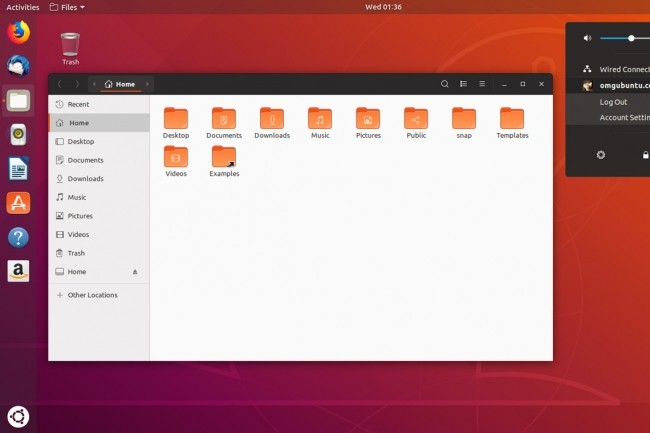
Graphical User Interface
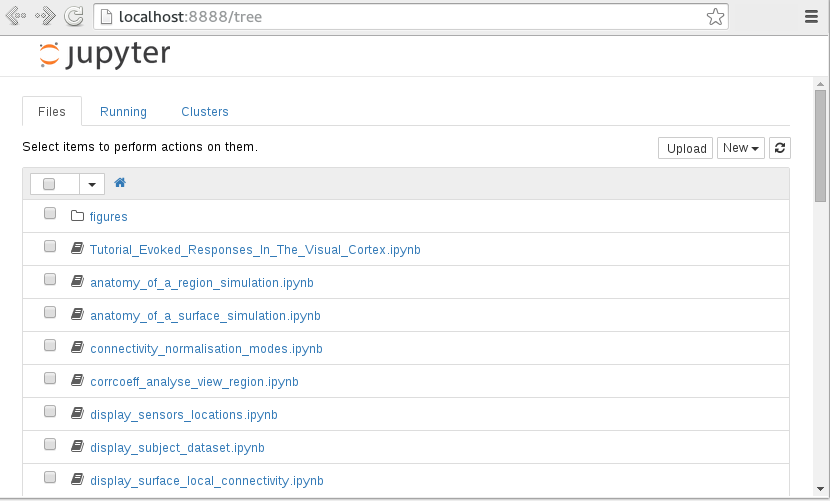
Command-Line Interface through a terminal



Why using Linux ?
Numerous fast and powerful programs
Easy to link commands and programs (workflow)
Numerous bioinformatics softwares available
90% of servers on Linux

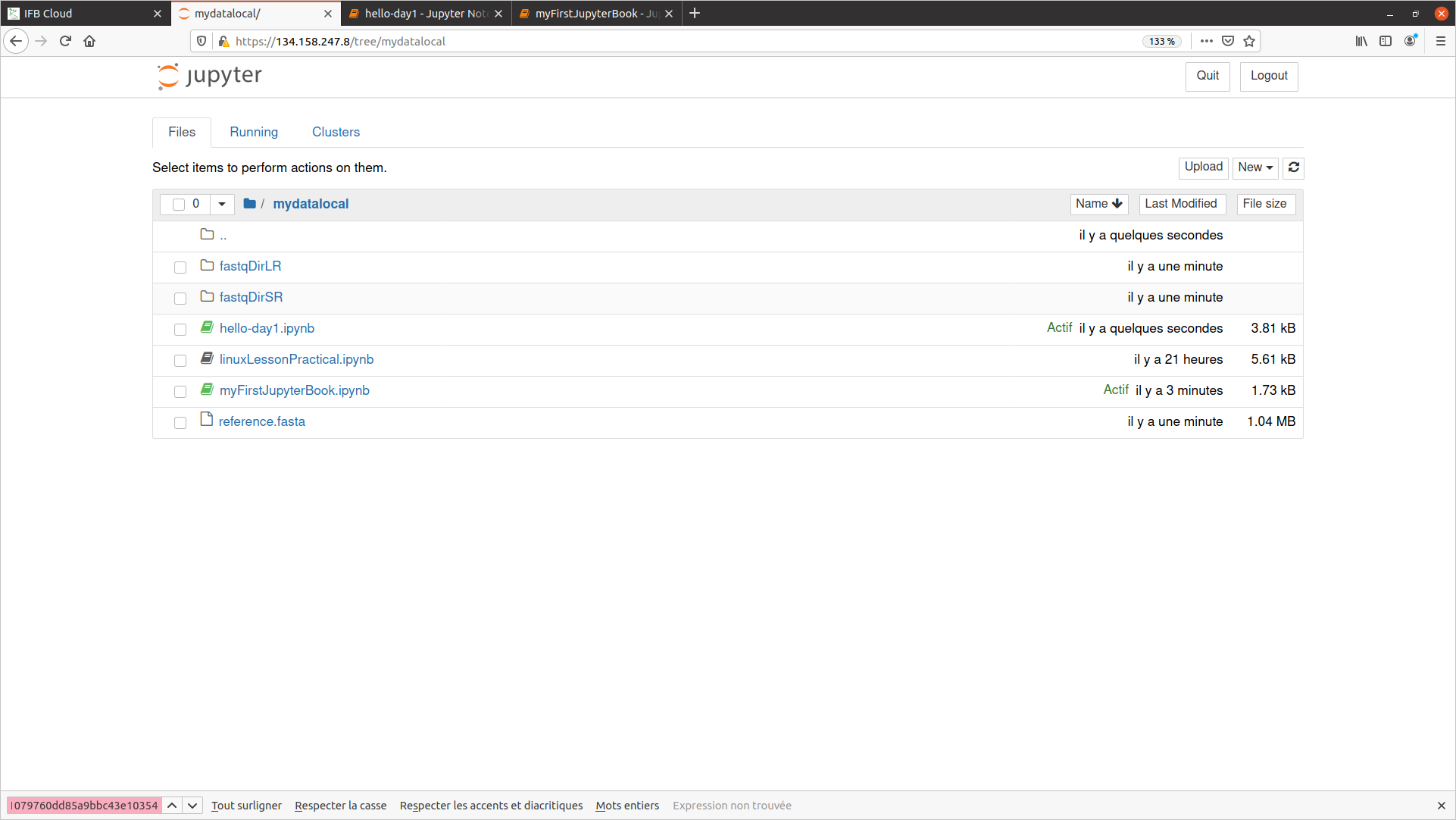
Let's go through jupyter
Linux command syntax
command [ -options] [ arguments ]
Your first command pwd
pwd print the name of the current directory (the full path)
pwd
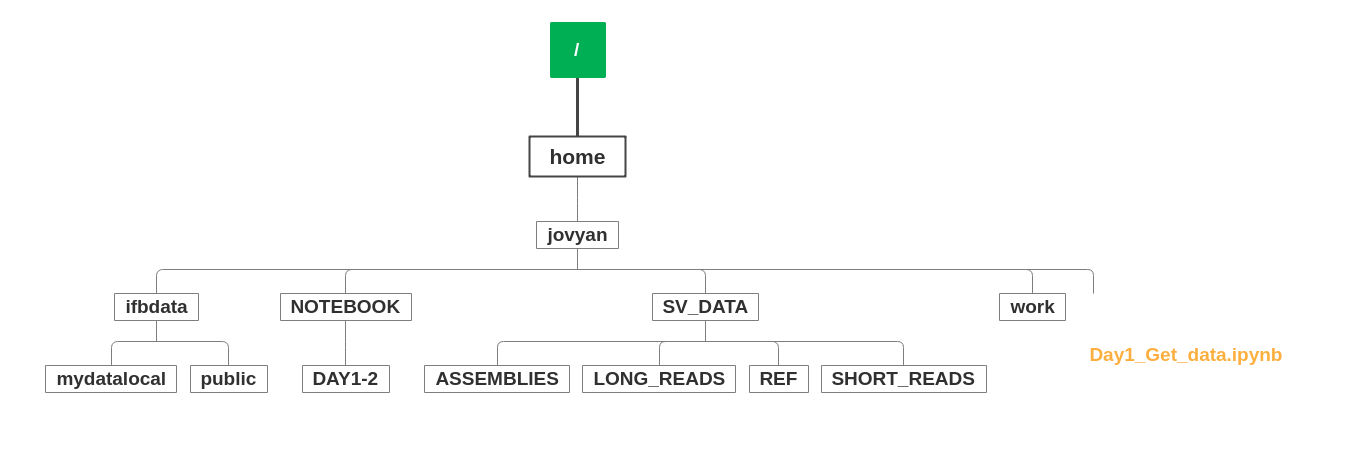
2nd command ls
- without argument : list all the files in the current directory (by default)
ls
ls + option -l
ls -l : list files with more information about each file (long)
ls -l
2nd command + argument ls
with directory path as argument
ls /home/jovyan/SV_DATA/REF

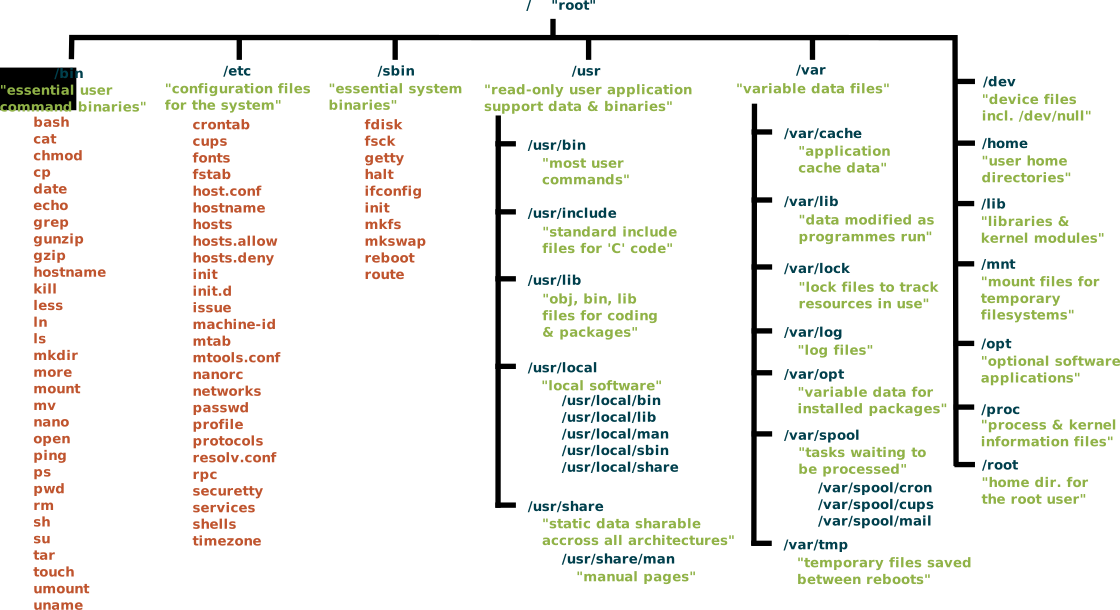
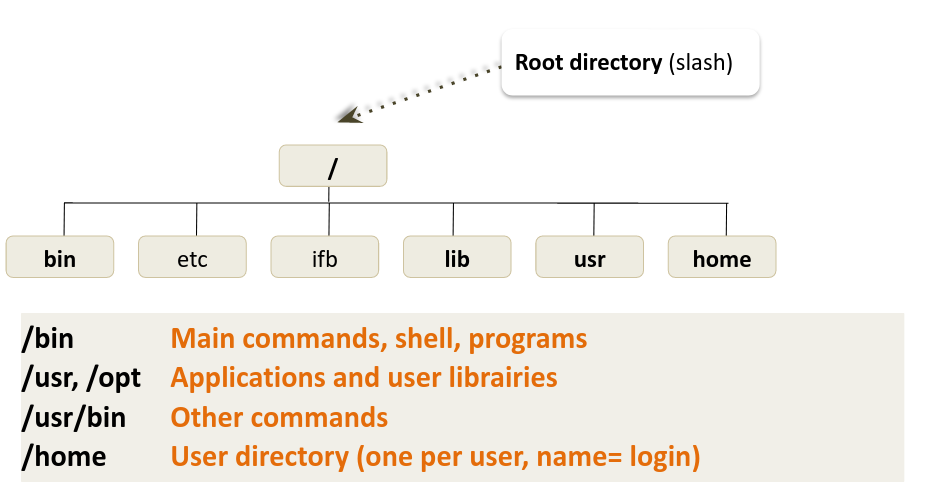
- What is a file tree for Linux?


The file tree - Main directories
Path of a file
Path = location to a file/directory in the file system
On linux filetree, you can use absolute or relative path

- What is the difference between the absolute and relative path ?
What is an absolute path of a file or a directory ?
- Path = location to a file/directory in the file system
| ABSOLUTE | |
|---|---|
| Complete path of a file starting from the root directory / |
|
| starts always with / | |
| always good wherever user is working |
What is a relative path of a file or a directory ?
- Path = location to a file/directory in the file system
| RELATIVE | |
|---|---|
| Path related to the present working directory (where the user is working) |
|
| Never starts with / | |
| Depends on where the user is working |
In brief
- Path = location to a file/directory in the file system
| ABSOLUTE | RELATIVE |
|---|---|
| Complete path of a file starting from the root directory / |
Path related to the present working directory (where the user is working) |
| starts always with / | Never starts with / |
| always good wherever user is working | Depends on where the user is working |
Absolute Path
Always start with / (root directory)
Always works wherever user is working on the server or vm
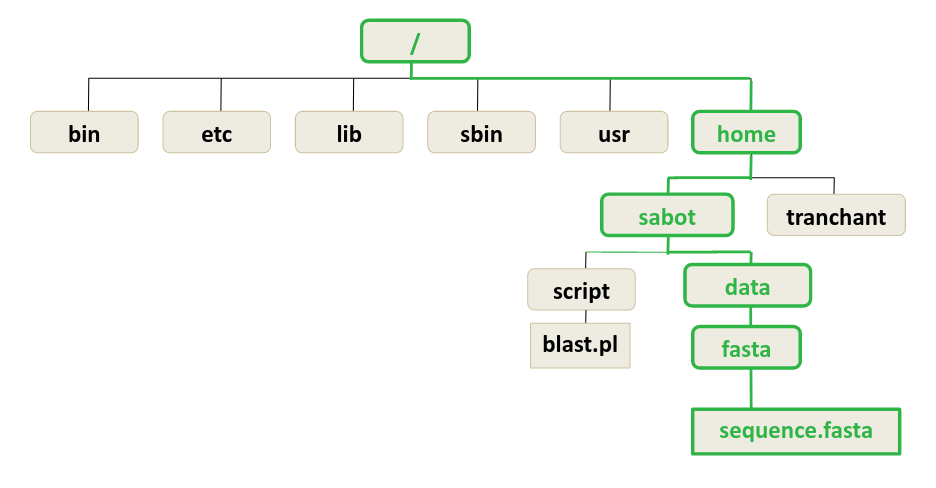
- What is the absolute path of the file sequence.fasta ?
Absolute Path
Always start with / (root directory)
Always works wherever user is working on the server or vm
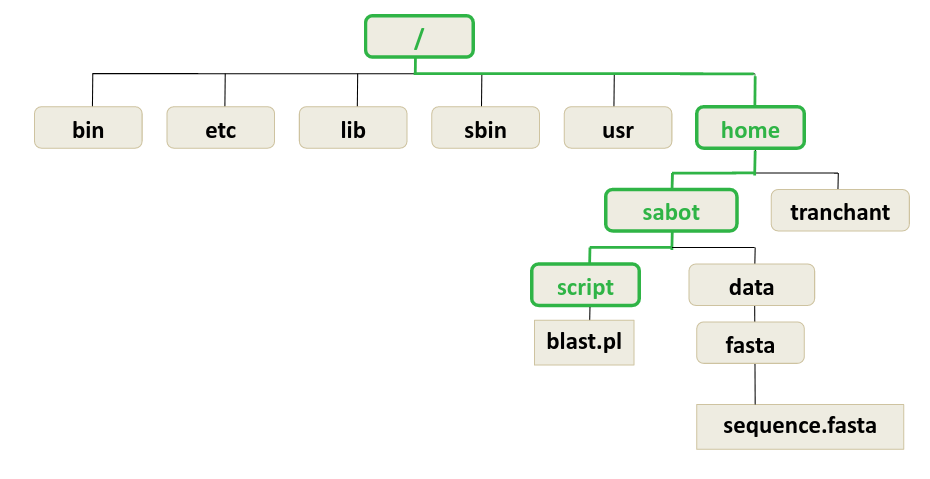
- What is the absolute path of the directory script ?
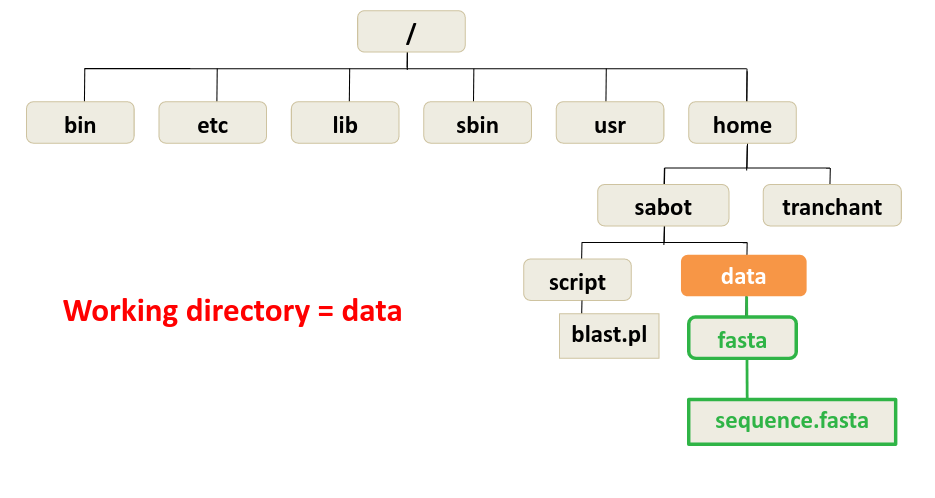
- What is the relative path of the file sequence.fasta ?
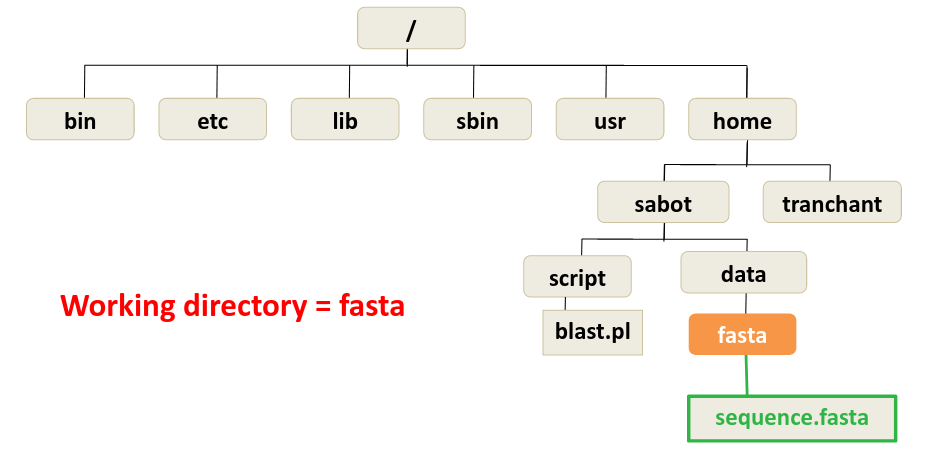
- What is the relative path of the directory fasta ?
Rules for naming file and directory names
linux is case sensitive
Sequence.fasta SEQUENCE.fasta sequence.fasta
Rules for naming file and directory names
- linux is case sensitive
- Only ROMAN letters, numbers and _ -
Rules for naming file and directory names
linux is case sensitive
Only ROMAN letters, numbers and _ -
No space, accent or special symbol
& ~ # ” ' { ( [ | ` \ ^ @ ) ] } $ * % ! / ; , ?
Rules for naming file and directory names
- linux is case sensitive
- Only ROMAN letters, numbers and _ -
- No space, accent or special symbol
- No need to use filename extension (.txt), just to improve readability of filenames.
A few Basic Commands
| pwd | Display the full path of the current directory |
| ls | List all files/directories |
| ls -l | Display all files (Long listing) |
A few Basic Commands
How to get help about one command
- with the ’option --help ou -h
- with the command man
Command cd
- Move from the current directory into a new directory
cd DIRECTORY NAME (absolute or relative path)
- Move into the REF directory (absolute path)
- Move into the SV_DATA directory (absolute path)
- Move into the SHORT_READS directory (relative path)
Some Commands
| pwd | Display the full path of the current directory |
| ls | List all files/directories |
| cd DIR_NAME | Change the working directory |
| rm nom_fichier | Remove a directory |
| cp file1 file2 | Make a copy of file1 and calls it file2 |
| cp FILE_NAME DIR_NAME | Copy the file FILE_NAME in the directory DIR_NAME |
| cp FILE DIR/NEW_FILE | Mix of 2 |
Commands for displaying text files and searching word
command cat
cat nom_fichier: Displays the content of a file on the screen
(Don’t use it with big files!!)
cat _PUT_THE_CORRECT_PATH_TO_ASSEMBLIES/assembly-stats.txt_
command wc
wc -l: Displays the nomber of lines in a file
wc -l PUT_THE_CORRECT_PATH_TO_REF/GCA_002220235.1_ASM222023v1_genomic.gff
command head
head nom_fichier: writes the first ten lines of a file to the screen
head PUT_THE_CORRECT_PATH_TO_REF/GCA_002220235.1_ASM222023v1_genomic.gff
head -n 20 PUT_THE_CORRECT_PATH_TO_REF/GCA_002220235.1_ASM222023v1_genomic.gff
command tail
tail nom_fichier: writes the last ten lines of a file to the screen
tail PUT_THE_CORRECT_PATH_TO_REF/GCA_002220235.1_ASM222023v1_genomic.gff